 SaiLoR
Annotation tool for systematic literature reviews
SaiLoR
Read each paper’s PDF beside a structured form. Keep every answer in a plain JSON project file.
Features
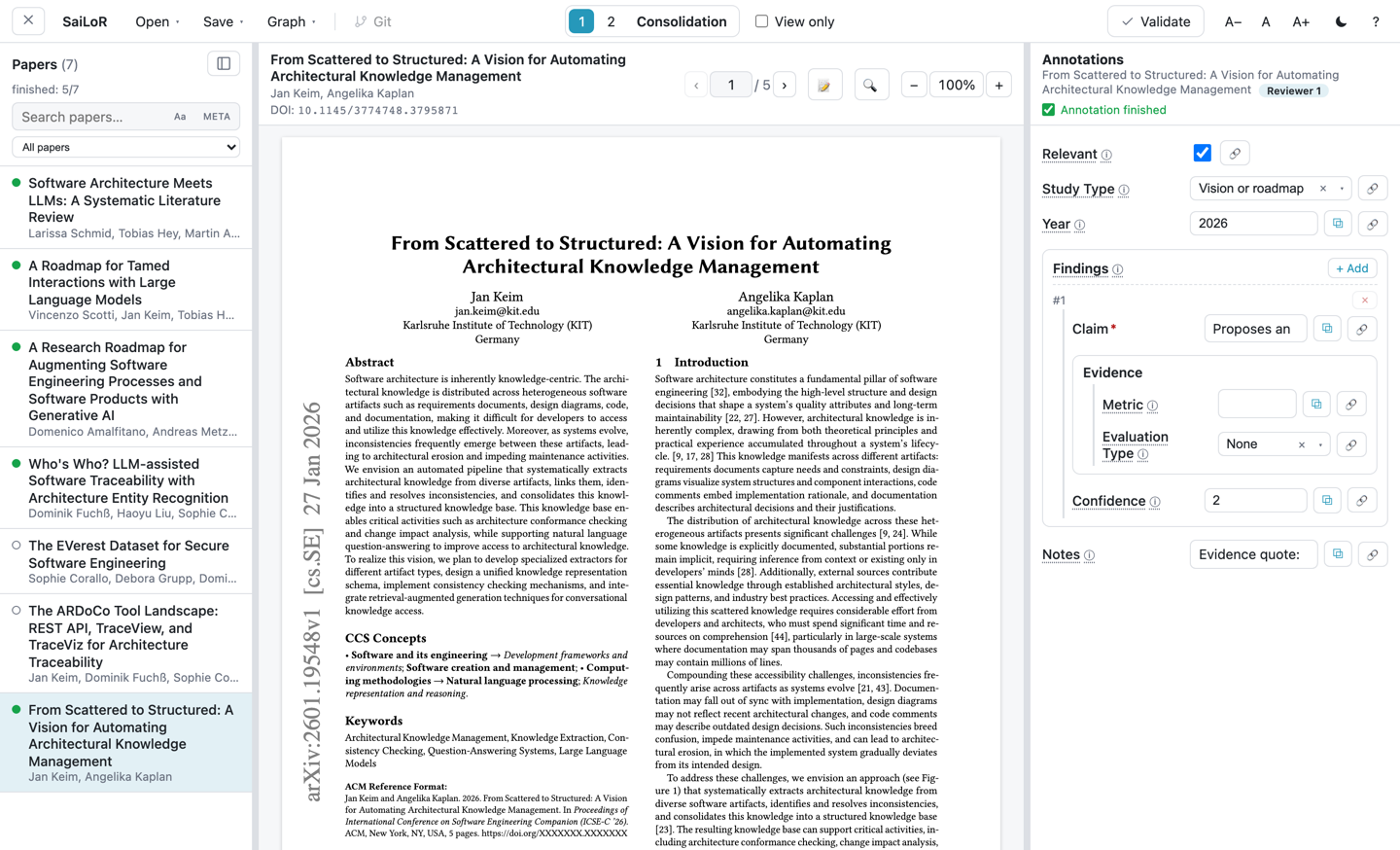
Structured annotation
Define the fields you need once, in a schema. Every paper then gets the same form.
- Field types: text, number, yes/no, year, and groups.
- Text fields with fixed options become a dropdown.
- Repeatable groups, such as several findings per paper, with minimum and maximum counts.
- Conditional fields that appear only after another answer (
visibleIf). - Required fields, and an optional Annotation finished mark per paper.
Evidence from the PDF
- Select text in the PDF and copy it into a field.
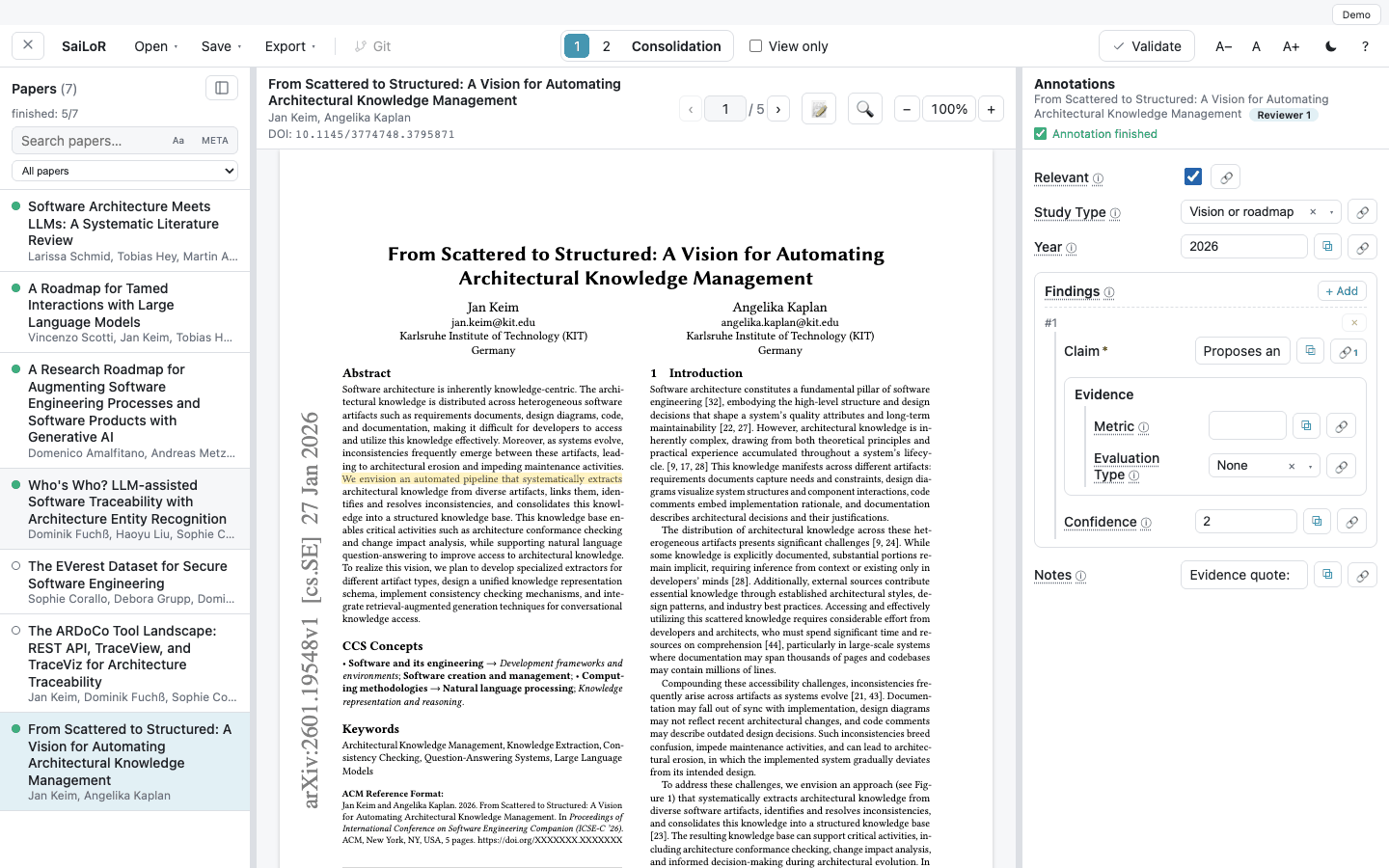
- Highlight text or add sticky notes. Each mark can carry its own comment.
- Link a highlight or note to a field as evidence. Click it later to jump back to the PDF.
- Export your marks into a standalone annotated PDF.
Several reviewers and reconciliation
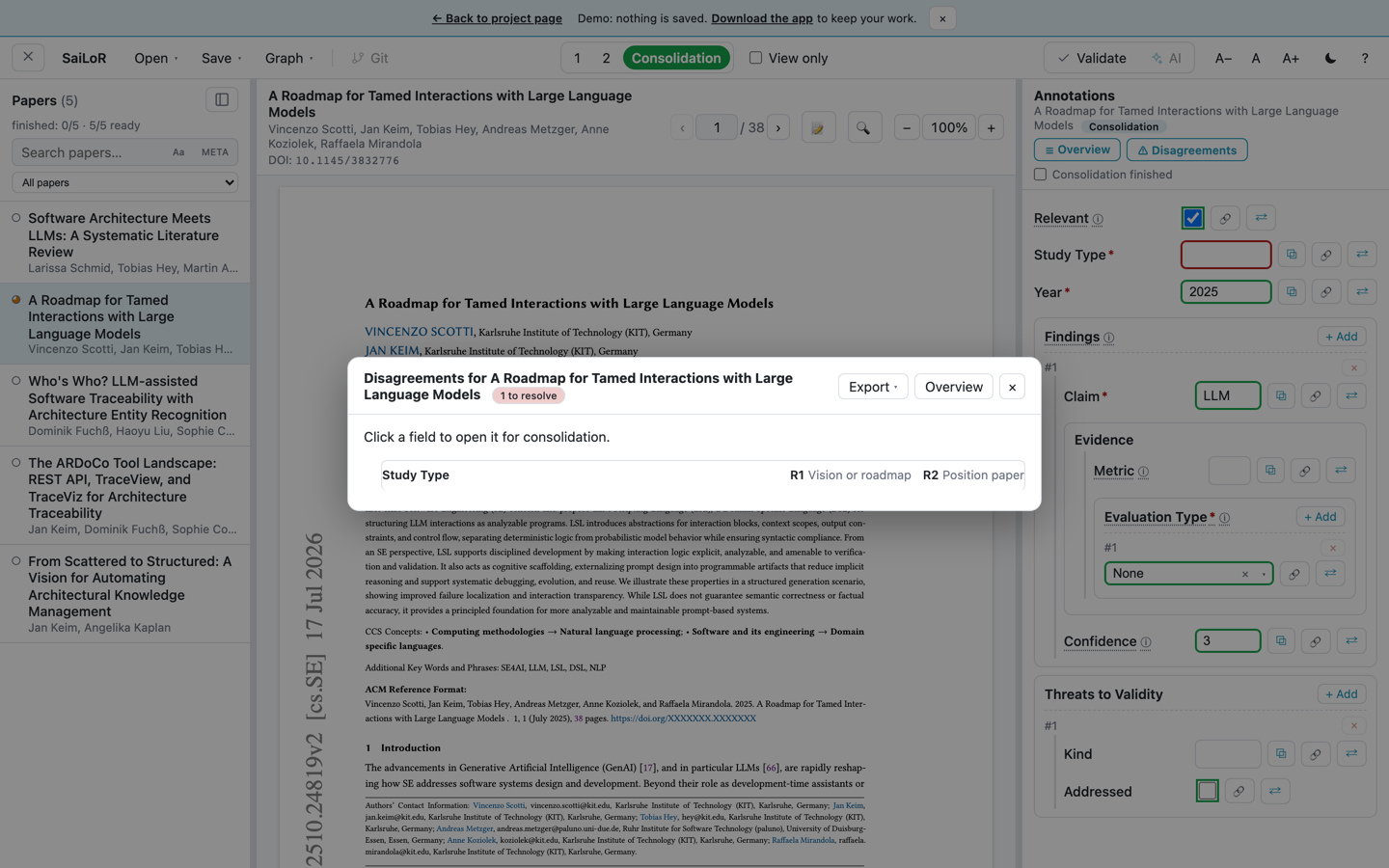
- Set 2 to 10 reviewers. Each reviewer works on their own answers.
- The Consolidation seat compares answers field by field with the ⇄ button.
- Fields where all reviewers agree are filled in for you.
- ⚠ Disagreements lists every field that reviewers answered differently.
- ⚖ Agreement reports Cohen’s κ, Fleiss’ κ, and Krippendorff’s α.
Strict mode
Strict mode adds a workflow for a team with named persons.
- Add persons and assign papers to them.
- Each person sees only their assigned papers. A Manager sees all papers and all seats.
- Finishing a person’s work locks it at the next save. Only the Manager can unlock it.
- Consolidation waits until every assigned person has finished. The Manager can override this gate.
Warning: strict mode is a workflow aid, not security. Anyone can pick a different person or edit the files.
Screening
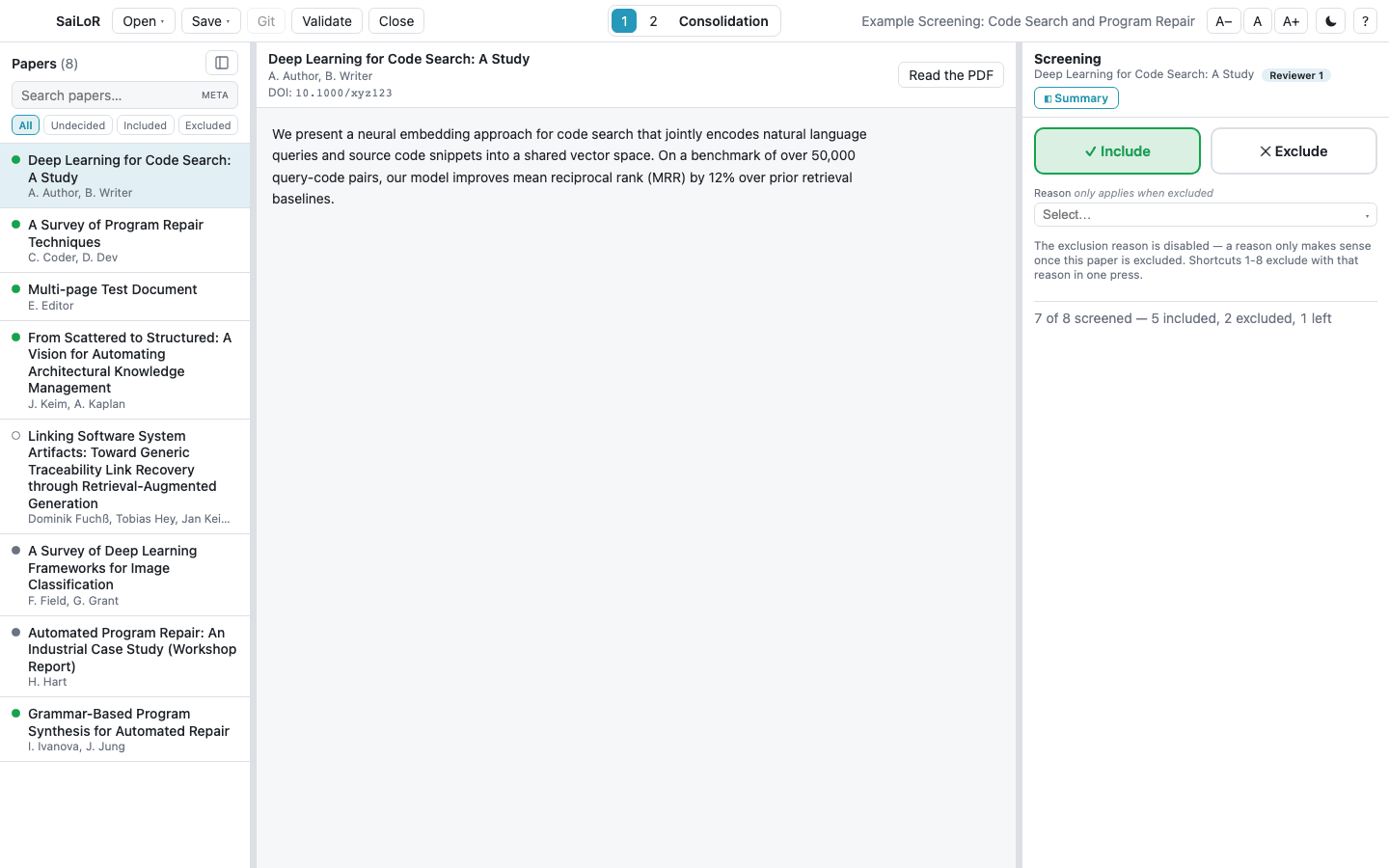
Screen titles and abstracts before you annotate full papers.
- Include or exclude each paper. Exclusion reasons are set in advance.
- Keyboard shortcuts: I to include, E to exclude, U to undecide, and 1 to 9 for a reason.
- A summary reports the counts for each decision and each exclusion reason.
- New from screening… starts the next phase from a screening project.
Import papers and find duplicates
- Add single PDFs, or a whole folder including its sub-folders.
- Import references from BibTeX (
.bib), RIS (.ris), or CSL-JSON files. - Probable duplicates are flagged. You decide each one. Nothing merges silently.
Metadata correction
- Set the metadata correction mode in the project editor. With the mode off, title, authors, year and DOI stay read-only.
- Get proposals from the PDF. Crossref lookup is optional.
- Confirm each correction before it is saved.
PDF folder scan
- Scan a PDF folder to find new files. Files are compared by SHA-256 hash, not by name.
- Two files with the same hash count as one paper.
AI-assisted annotation (preview)
AI support is off unless the project sets "ai": true in config.
- Prompt mode sends one request per paper. Agent mode uses tools and a judge. It sends more requests and costs more.
- Each quote in an AI answer is checked against the paper text. A quote that is not in the paper is marked.
- Prompt overrides let a project add a role, field help and examples. The fixed rules stay in force.
- An evaluation compares the AI seat with the consolidated answers, field by field. You can export it as CSV.
- You review each suggestion, can edit it, and then apply it. AI-written fields stay marked until you confirm them.
- Use a cloud provider with your own API key, or a local model server. API keys are stored in the operating system keychain.
- AI use is recorded in the project file, with the provider and model.
Diagrams
- Count papers by year, venue, author, keyword, or any field of the annotation schema.
- Draw bar, stacked bar, line, pie, or heat map charts, with an optional second dimension.
- Set the title, axis labels, colours, legend, and size. The preview updates live.
- Count only some papers with a filter. Draw horizontal bars or shares of 100 %. Show the counts as a table.
- Export the diagram as SVG, PNG, PDF (vector), or CSV. Settings are kept across sessions. A background worker makes the diagram, so the window stays usable.
Knowledge graph
- Export the papers, authors, venues, keywords and answers as JSON-LD, RDF Turtle, GraphML, or two CSV files.
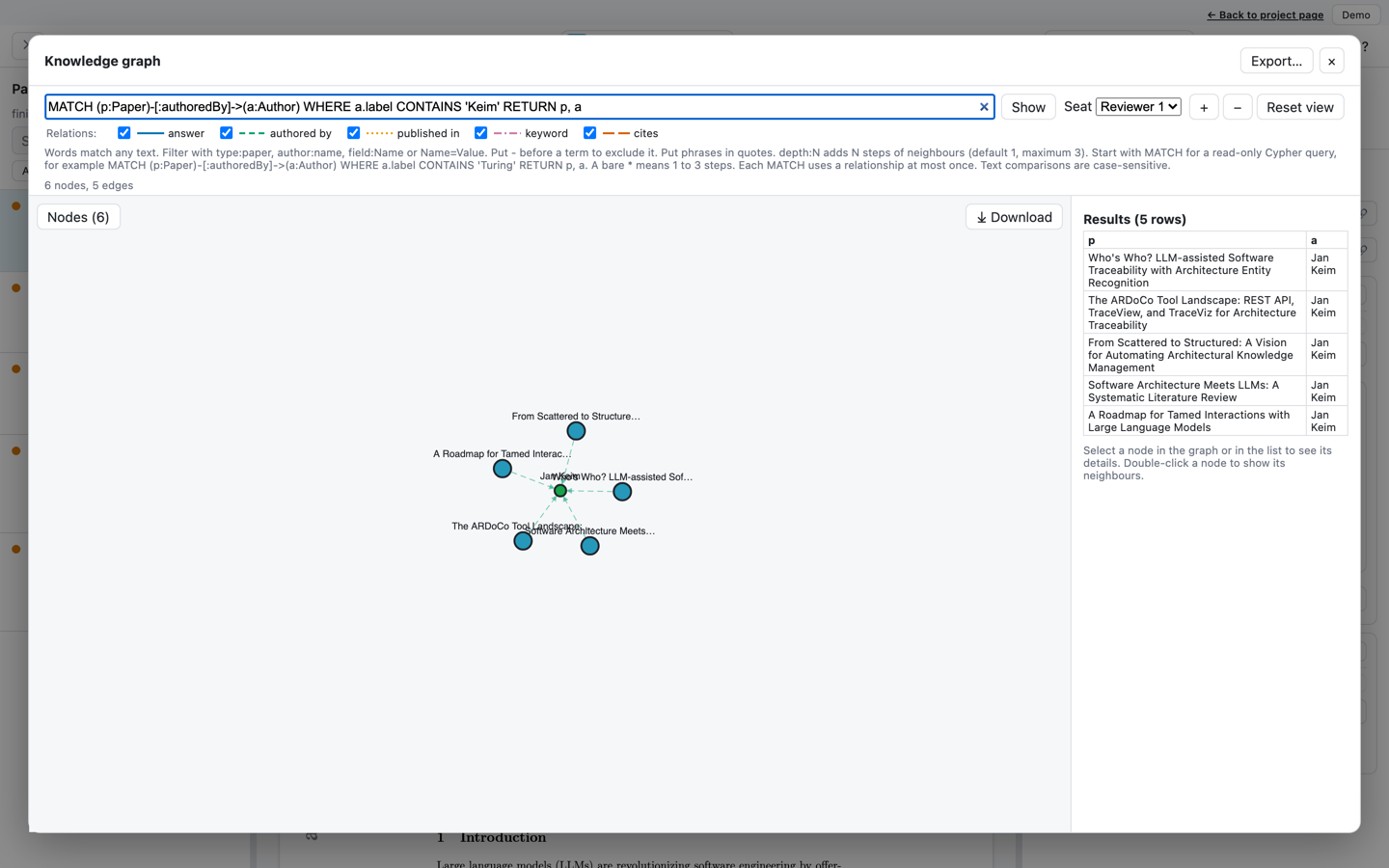
- Explore the same graph in a view. Drag, zoom, and expand the neighbours of a node.
- Download the graph as an SVG or PNG image, as the visible section or as the whole graph.
- Search with text queries, for example
type:paperorMethod=Survey. - Run read-only Cypher queries. A subset of Cypher is supported, with limits on size and run time.
- Queries run in a background worker, so the view stays usable.
- Hide node types, see graph statistics, open a paper, and save Cypher tables as CSV.
Large projects
- A large project opens in two steps. The paper list appears first, and annotation files load in batches of 2000 papers.
- The paper list shows the load progress. You can open and annotate each paper that has loaded.
- Saving waits until every paper has loaded, so a partial project never replaces the full one on disk.
Languages
The interface is available in nine languages: English, German, Chinese (Simplified), Persian, Spanish, French, Italian, Portuguese and Japanese. You choose the language in the Settings dialog.
Warning: the texts in the languages other than English are drafts.
Git integration
- SaiLoR runs your own
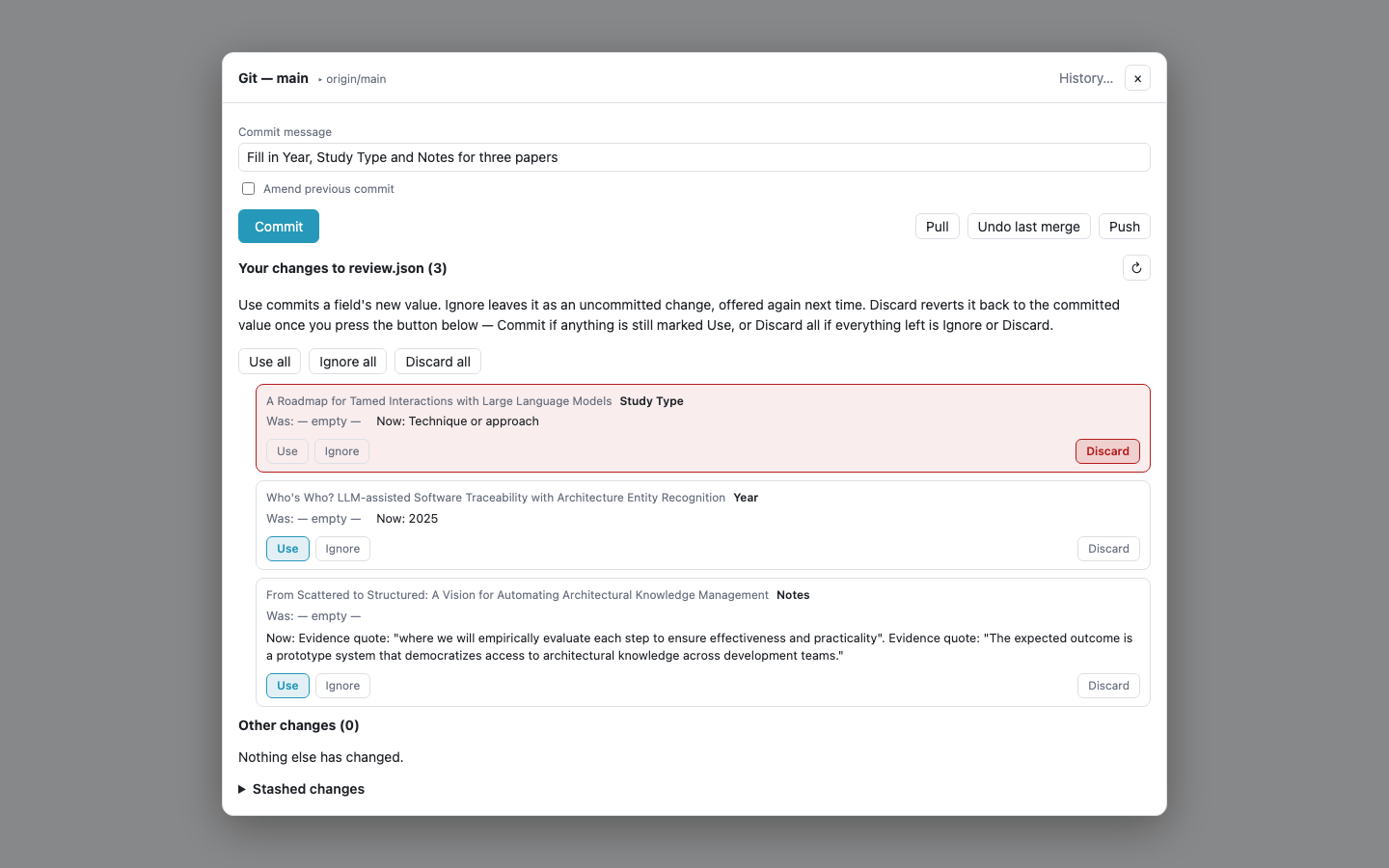
gitprogram. It uses your existing credentials. - Review each changed field before you commit it.
- Pull and merge reviewers’ work field by field. Only a field that both sides changed asks you to choose.
- A dry-run summary shows what a merge changes before you confirm it.
- SaiLoR backs up the branch before a merge. You can undo the last merge.
- Switch branches, and browse the history of the project file.
Local first and secure
- SaiLoR has no account and no server of its own. Your project files stay in folders you choose.
- The app checks file paths before it reads or writes a file. A write replaces the old file in one step.
- AI web access is limited to public web hosts.
- This page loads no scripts, fonts, or trackers from other sites.
Requirements and tests
- Every requirement is listed in
docs/requirementsand linked to its code and tests. - Mutation tests check that the unit tests catch wrong code. You start them on demand.
Platforms
Download the file for your system from the latest release.
| System | Files | First start |
|---|---|---|
| macOS 15 or later, Apple silicon | .dmg |
macOS blocks the unsigned app. Allow it in Privacy & Security. |
| macOS 15 or later, Intel | .dmg |
Same as Apple silicon. |
| Windows, x64 | .exe installer |
SmartScreen warns about the unsigned installer. Choose More info, then Run anyway. |
| Linux, x64 and arm64 | .AppImage, .deb, .rpm |
Make the AppImage executable and run it. Install .deb or .rpm with your package manager. |
The macOS, Windows and Linux AppImage builds update in the app. Update the .deb and .rpm packages by hand.
Warning: the releases are not signed with an Apple or Microsoft certificate. The first start shows a warning. The full steps are in the README.
Try it online
The demos run SaiLoR in your browser. Try the interface before you install the app.
- Try the annotation demo. It opens on the paper From Scattered to Structured. All seven papers open with their PDFs.
- Try the schema editor demo. It opens a new project. Add fields, then save to download
project.json. - Nothing you change in the annotation demo is saved.
Warning: use the desktop app for real review data. The demo does not keep your work.
Quickstart
Install a release
- Download the file for your system from the latest release.
- Install the app. Follow the steps for your system in the table under Platforms.
- If you used SaiLoR 1.x, read Upgrading from 1.x first.
- Open the app. Create a project as shown in Create your first project.json.
Build from source
Use this route to change the code. The build needs Node.js 22 or later and Rust. make setup installs them.
git clone https://github.com/Gram21/SaiLoR.git
cd SaiLoR
make setup
make dev
The full build guide is in docs/building.md.
How to cite
Cite SaiLoR through its Zenodo record. The DOI is 10.5281/zenodo.23804729. Replace VERSION with the version that you used. Use the DOI of that version.
@software{keim_sailor,
  author  = {Keim, Jan},
  title   = {{SaiLoR}},
  version = {VERSION},
  doi     = {10.5281/zenodo.23804729},
  url     = {https://github.com/Gram21/SaiLoR},
  license = {GPL-3.0-only}
}
License
SaiLoR is free software under the GNU General Public License, version 3 only (GPL-3.0-only). Read the LICENSE file for the full terms.